

1. Currencies
Home + foreign currencies, and their rates at the conversion date. Start →
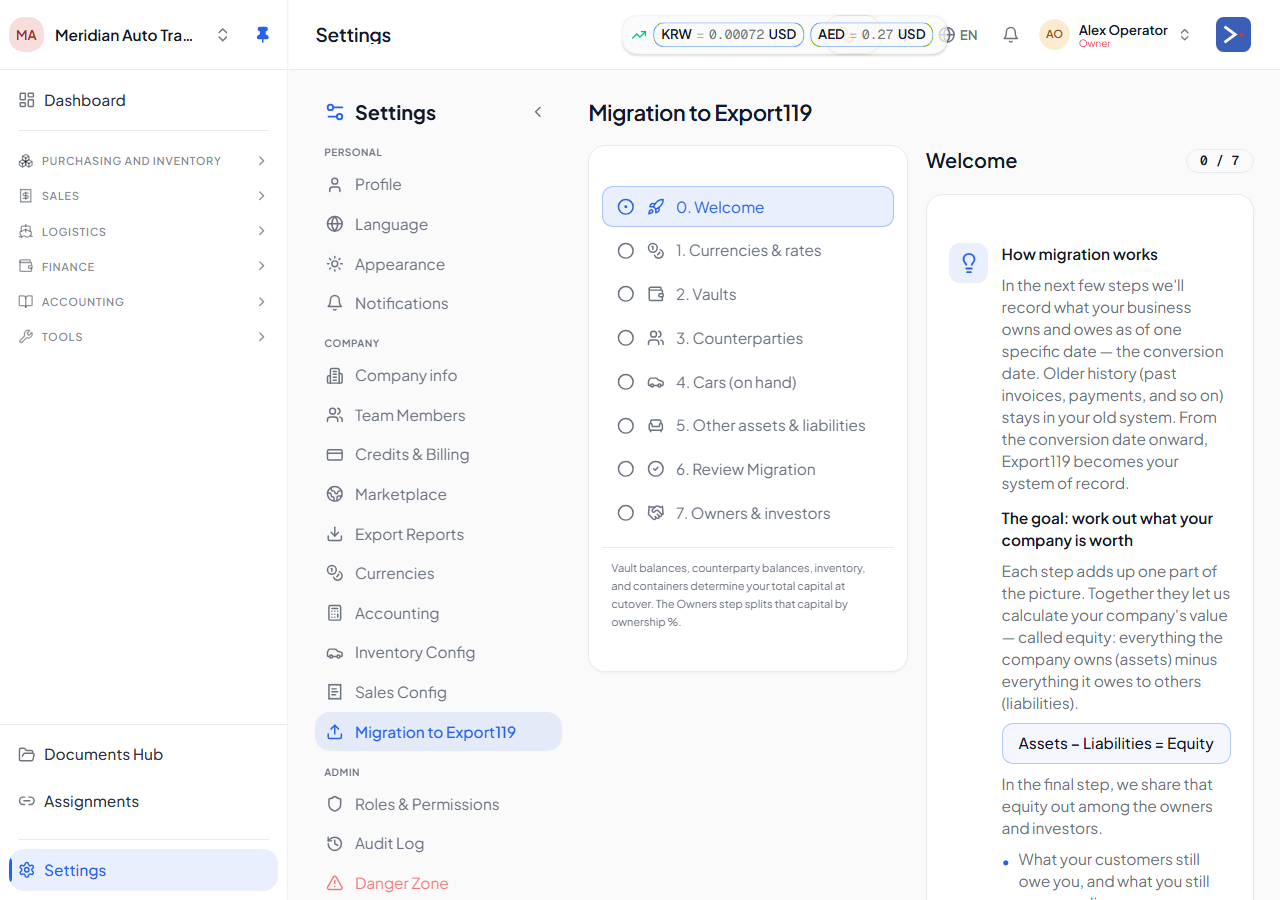
The Migration wizard is how trading companies bring in what they already have — cars in inventory, money in the bank, who owes them and who they owe, and their ownership structure — from QuickBooks / Xero / Zoho / Odoo / spreadsheets. It walks you through a short set of steps and ends with a review checkpoint so you can confirm everything before going live.
Run the wizard if any of these is true:
If you’re starting from zero — the first car you ever buy is going to be entered fresh — skip the wizard entirely.
Pick a conversion date (often the last day of the previous fiscal month) and freeze every balance as of that date. Everything before is history that lives in your old system; everything from the conversion date forward lives in Export119.
As you enter your opening balances, Export119 holds them together in a temporary Opening Balance Equity bucket that keeps everything in balance. The last step (Owners) sorts that bucket into your real ownership — who owns what, and any investment agreements you declare. For the plain-language version of how balances become your books, see How your money flows.
1. Currencies
Home + foreign currencies, and their rates at the conversion date. Start →
2. Vaults
Cash drawers and bank accounts, with opening balances per currency. →
3. Counterparties
Suppliers, buyers, and stakeholders with what they owe you or you owe them. →
4. Cars
Inventory at cutover — make/model/VIN/landed cost, with sourcing (principal or consignment). →
5. Other assets & liabilities
Everything else — fixed assets, prepaid amounts, deposits, and non-trade liabilities like bank loans. →
6. Verify OBE
A read-only checkpoint. Confirm your opening position looks right before committing. →
7. Owners & investors
Equity holders and investment agreements — your opening ownership is set here. →
The order follows a simple logic: enter all your opening balances first → review them at the checkpoint → set ownership at the end. You can move back and forth between steps, and re-submitting a step is safe (it won’t double-count).
The fastest way to enter the list-heavy steps is the Excel templates offered on each step. Each template has a Validate button that flags row-by-row errors before you commit. Inline grids are available for smaller datasets.
Once the last step commits: